PagePin: Pin Feedback Directly to Live Websites
A Chrome extension and web dashboard that lets teams leave notes directly on parts of a live website, polish them with AI, and review and share all the feedback in one place.
- Next.js
- TypeScript
- Chrome Extension (MV3)
- Neon Postgres
- Vercel Blob
- Gemini AI
- Tailwind CSS
- shadcn/ui
- Claude Code
Overview
Website feedback usually ends up scattered across screenshots, chat threads, and messages like “the button on the homepage looks off.” By the time someone gets to it, the page has changed and nobody is sure which button was meant.
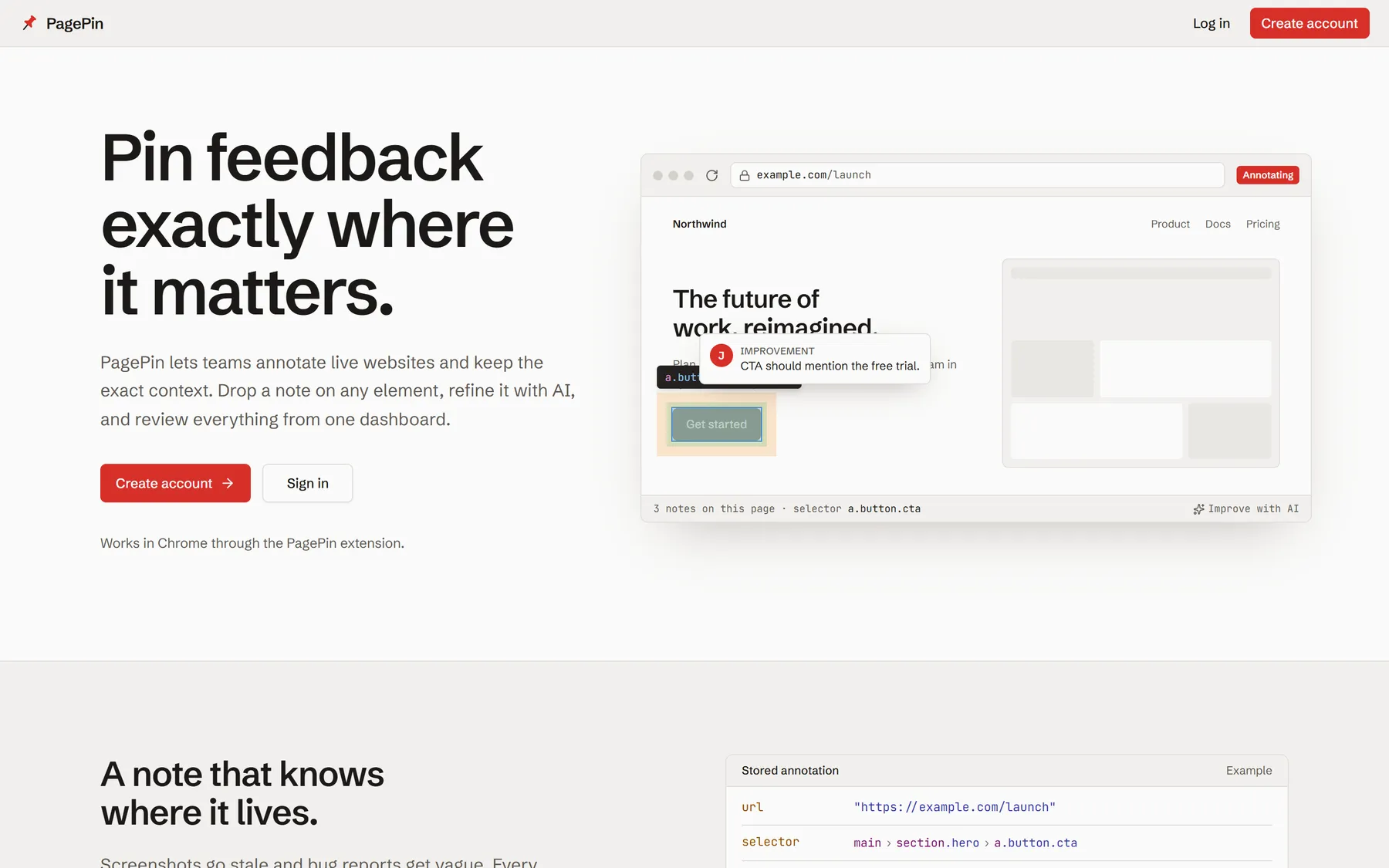
PagePin keeps feedback attached to the thing it’s about. A reviewer opens the website in Chrome, turns on PagePin, clicks the part of the page they want to comment on, and writes a note. The note stays pinned to that exact spot, so anyone who opens the page later can see it. It’s also collected in an online dashboard where the whole team can review it.
Who it’s for
- Testers reporting bugs on a website.
- Designers pointing out visual details that need fixing.
- Product owners and clients giving feedback without writing long explanations.
- Developers who need to know exactly what to fix and where.
Leaving a note on a page
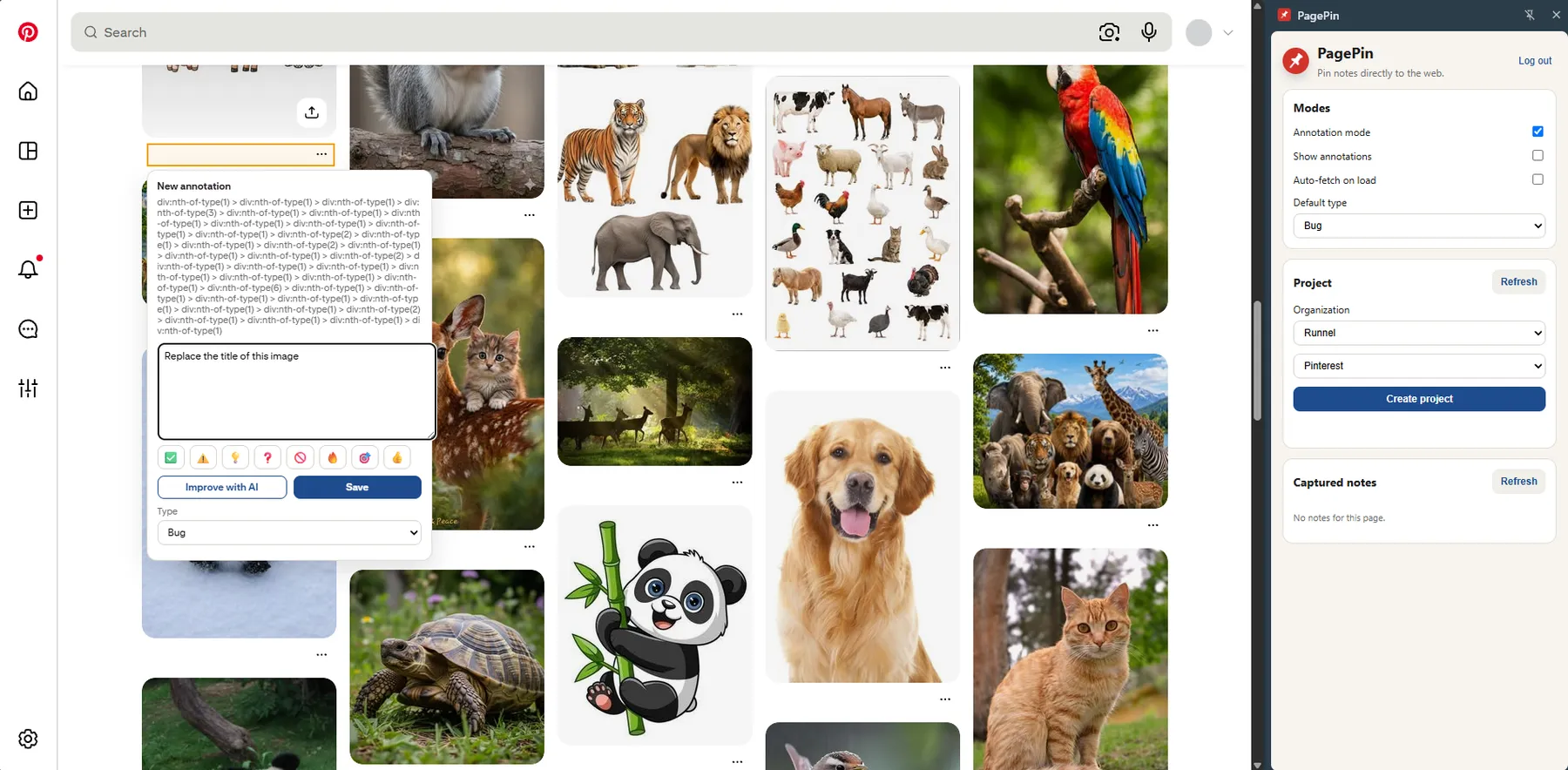
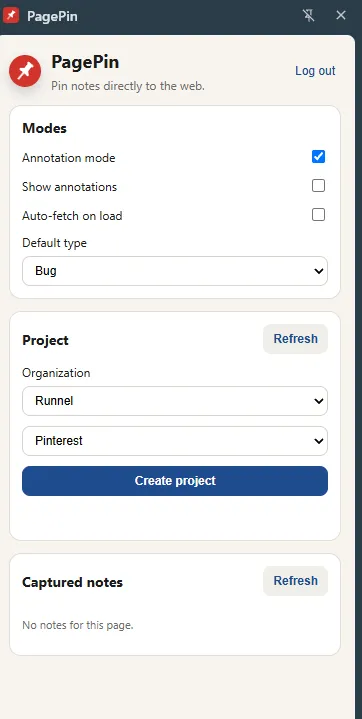
- Open the website and turn on Annotation mode in the PagePin side panel.
- Move the mouse over the page. Whatever is under the cursor gets highlighted.
- Click the part you want to comment on, and a small note box opens right next to it.
- Pick a type (bug, suggestion, improvement, or note), write the note, and save.
That’s it. The note is now pinned to that spot on that page.
Seeing notes on the page
With Show annotations turned on, every saved note appears as a small marker with the author’s photo, placed right on the part of the page it’s about. Clicking a marker opens the note and highlights what it refers to, so there’s no guessing.
The side panel also lists all the notes for the page you’re on.
Clearer notes with AI
Notes written quickly during a review are often vague. The Improve with AI button rewrites a note so it’s clearer and easier to act on, while keeping it short. The reviewer can keep the new version or stick with their original.
A dashboard for reviewing feedback
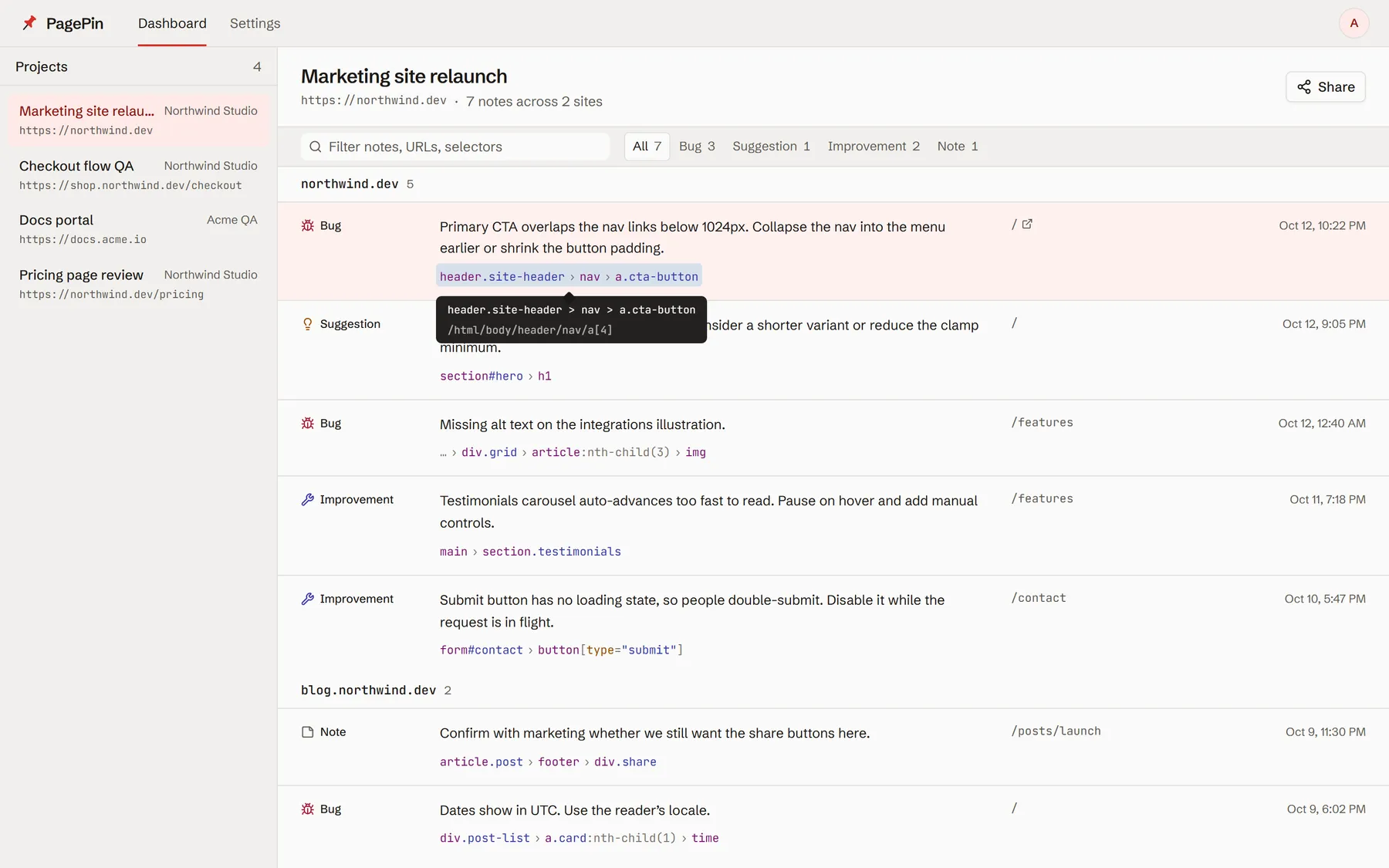
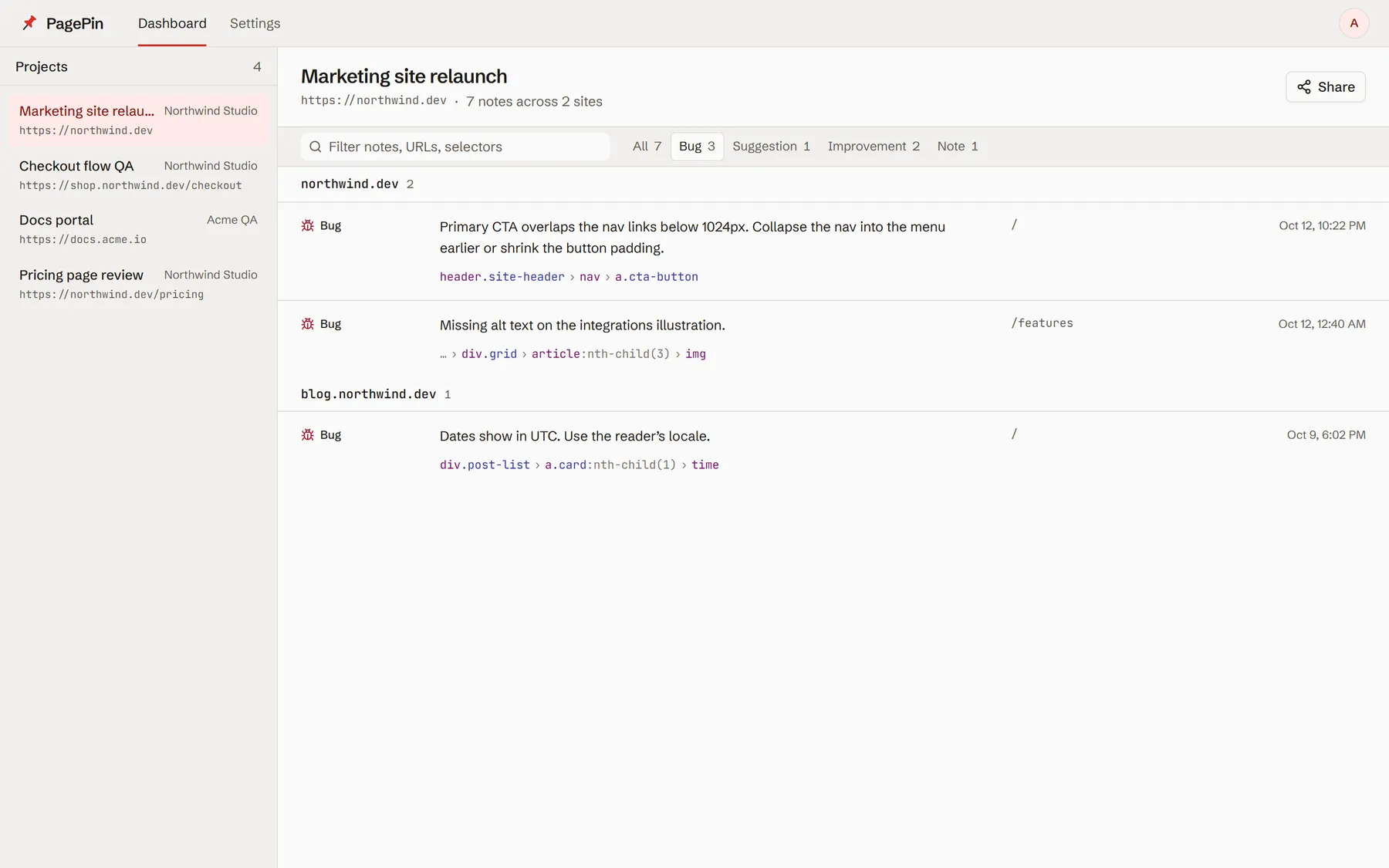
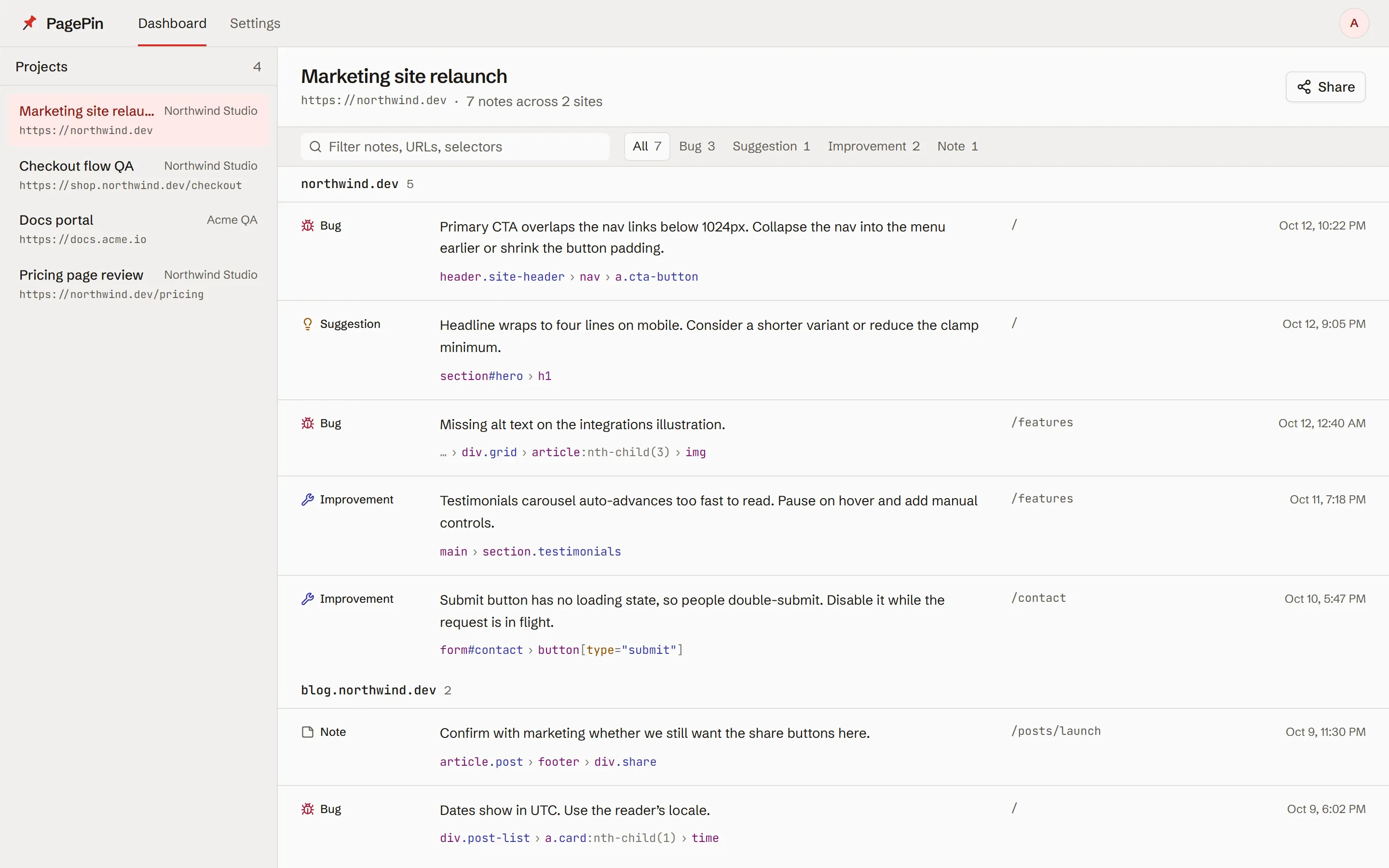
All notes are collected in an online dashboard, organized so a team can work through them:
- Projects for each website being reviewed.
- Notes grouped by site, so feedback for different parts of a project stays separate.
- Search to find any note quickly.
- Filters by type, with counts, such as showing only bugs.
- A direct link on every note that opens the exact page it was left on.
Teams and sharing
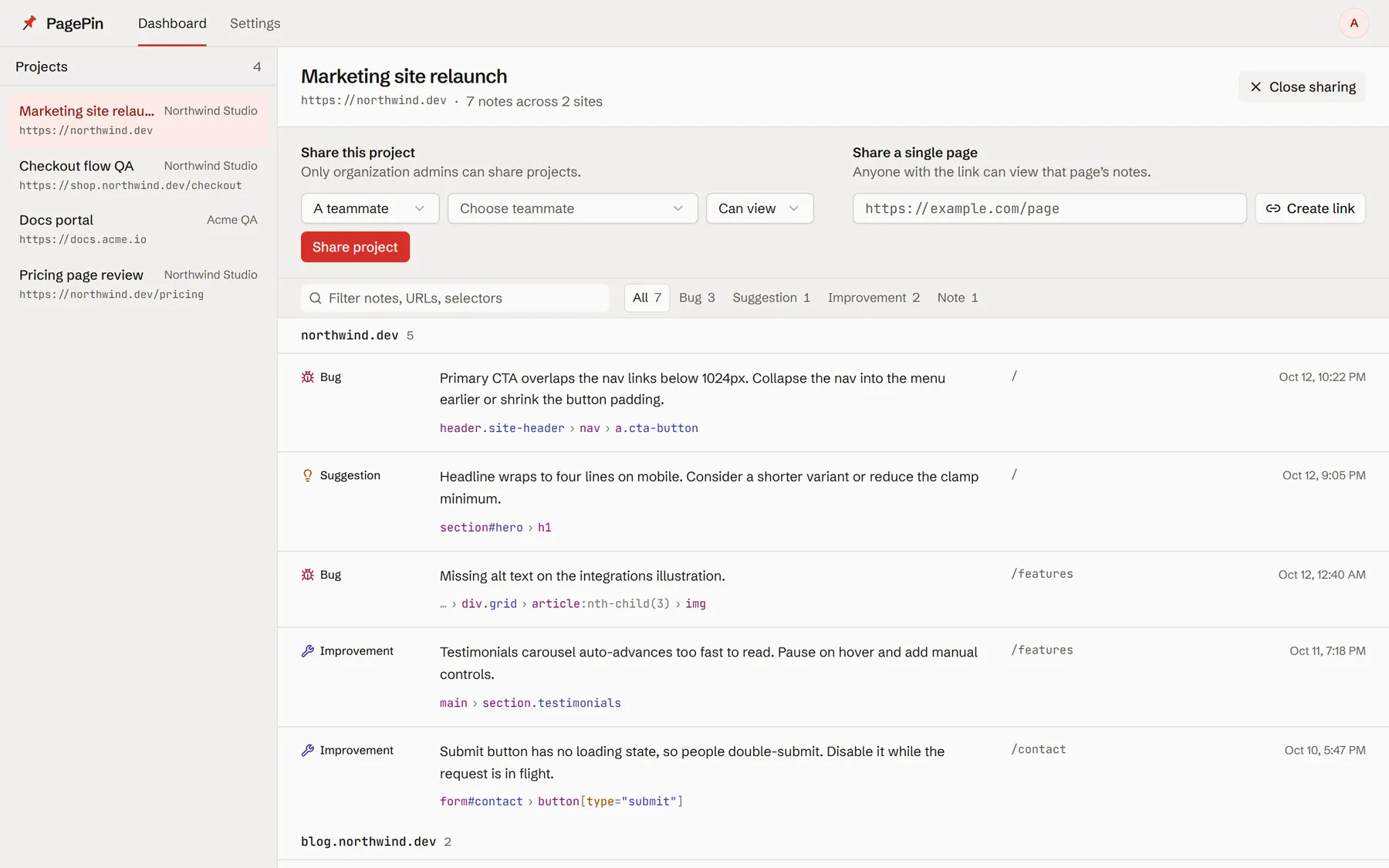
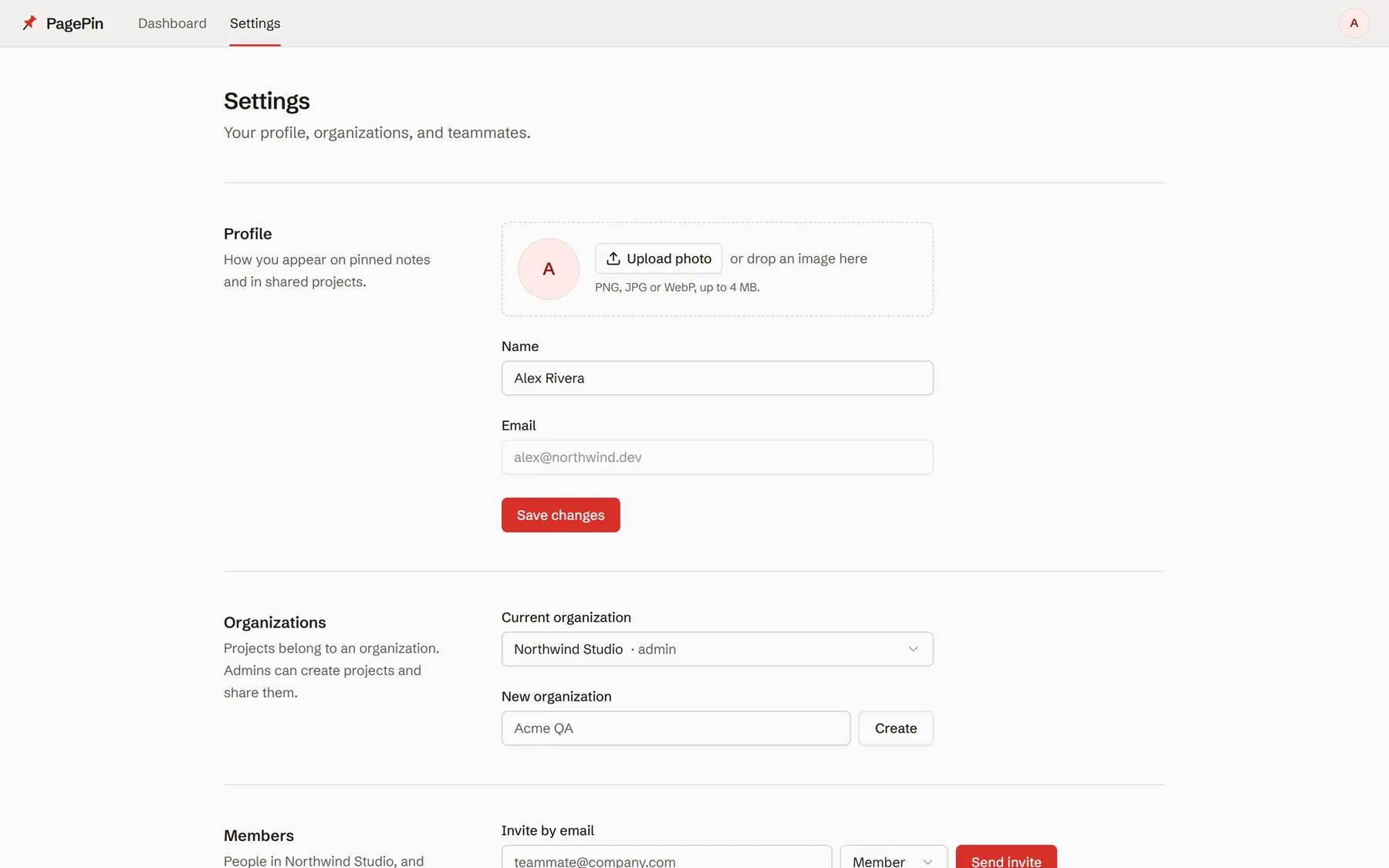
People can create an organization for their team and invite teammates by email. Each member is either an admin or a regular member.
Feedback can be shared in two ways:
- Share a whole project with a teammate or an entire organization, letting them either view or edit the notes.
- Share a single page with a link, so a client or anyone else can see that page’s notes without needing an account.
Private by default
Everyone signs in with their own account and only sees the projects that belong to them or have been shared with them. Only organization admins can share a project with others.
Challenges
- Keeping notes in the right place. Websites change over time, so a note could easily lose track of what it was pointing at. PagePin remembers each spot in more than one way, so notes stay put even after the page is updated.
- Growing from single pages to teams. The first version only tied notes to a page. I reorganized it around projects and teams, which made sharing possible while keeping the simple page-by-page view.